About Private Local Chat
Private Local Chat is a free place to use AI in your browser. Run a supported model on your own device, or choose an outside provider. Use it to draft, explore ideas, and work through information.
Three things to try
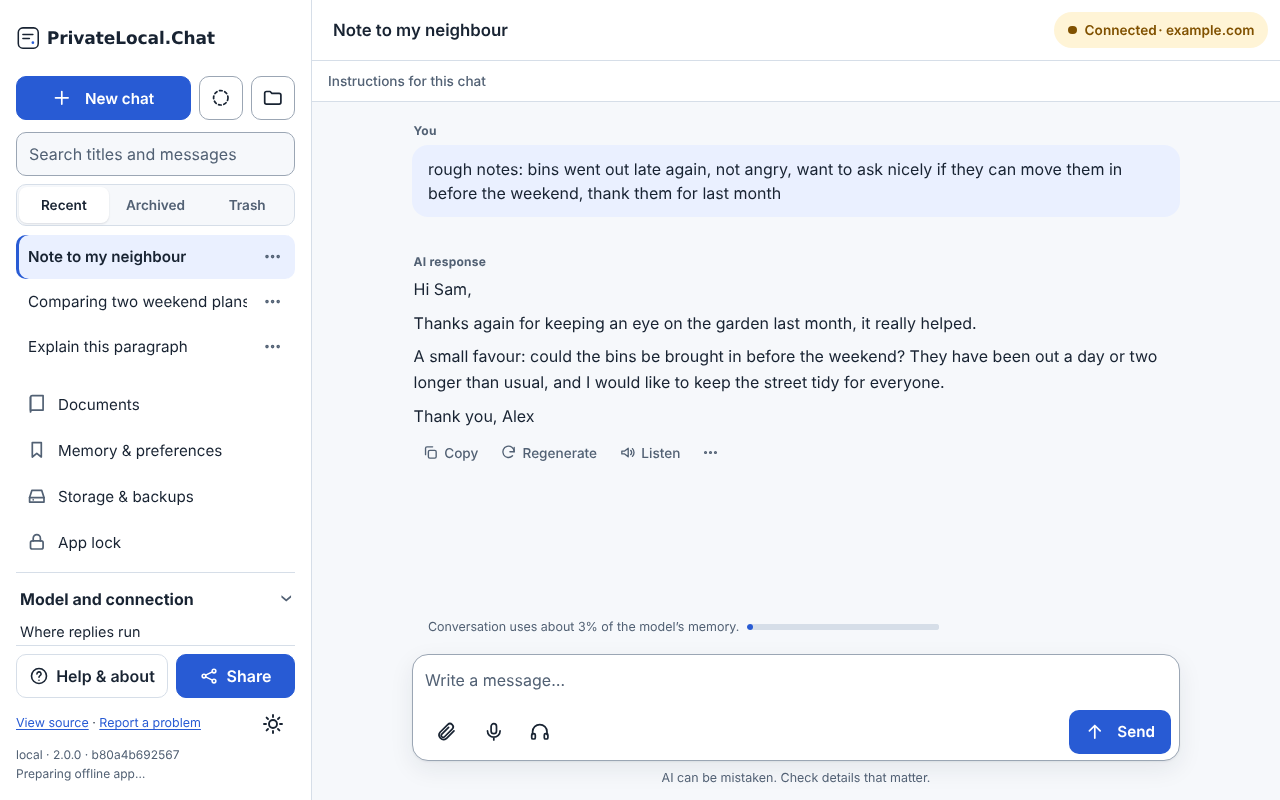
- Turn rough notes into a clear message. Paste your notes, say who the message is for, and ask for a short version. Edit it before you send it anywhere.
- Explain a passage with follow-up questions. Paste a paragraph or attach a text file, ask what it means, then keep asking until it is clear. Check the details that matter against the original.
- Compare a set of options. List the options and what matters to you, and ask for them side by side. The choice stays yours.
Models differ in capability and can make mistakes, misunderstand a question, or invent details, so review what they write. See how to use AI answers and whether it will work on your device.
Where your words go
With on-device chat, the model processes your conversation on your device, and it never falls back to an outside provider by itself. If you choose a connected provider, the messages and context in each request go to that provider and its practices apply. Saved conversations stay in your browser's storage. The Privacy page explains each case in detail.
Who maintains it, and why
Private Local Chat is an open-source project of JournalFoundation. Its source is published in the JournalFoundation/privatelocalchat repository on GitHub under the Apache License 2.0. The aim is a free, plain place to use AI in a browser, where a supported model can run on your own device and an outside provider is something you choose, not a default.
- Source code on GitHub
- Releases, with the source for each release and its notes
- Updates on this site, in plain language, with an RSS feed
- Contact and bug reports
Install on this device
There is nothing to download from an app store. Open https://privatelocal.chat/, then use your browser's install option where it has one:
- Chrome or Edge on a computer: the Install icon in the address bar, or Install in the browser menu.
- Chrome on Android: the browser menu, then Install app or Add to Home screen.
- Safari on iPhone or iPad: the Share button, then Add to Home Screen.
Installing keeps the app close at hand; it does not download a model by itself. Check app and model readiness before relying on offline use. More in the help answer and offline readiness.
Share resources
Everything below is for writing about or recommending Private Local Chat. The QR code is drawn on your device by the share panel above (Show QR code); it contains only the public address.
Product address
https://privatelocal.chat/
One-sentence description
Free AI chat in your browser. Run a supported model on your device, or choose an outside provider.
Introduction
Private Local Chat is a free place to use AI in your browser. Run a supported model on your own device, or choose an outside provider. Use it to draft, explore ideas, and work through information.